Network Updates
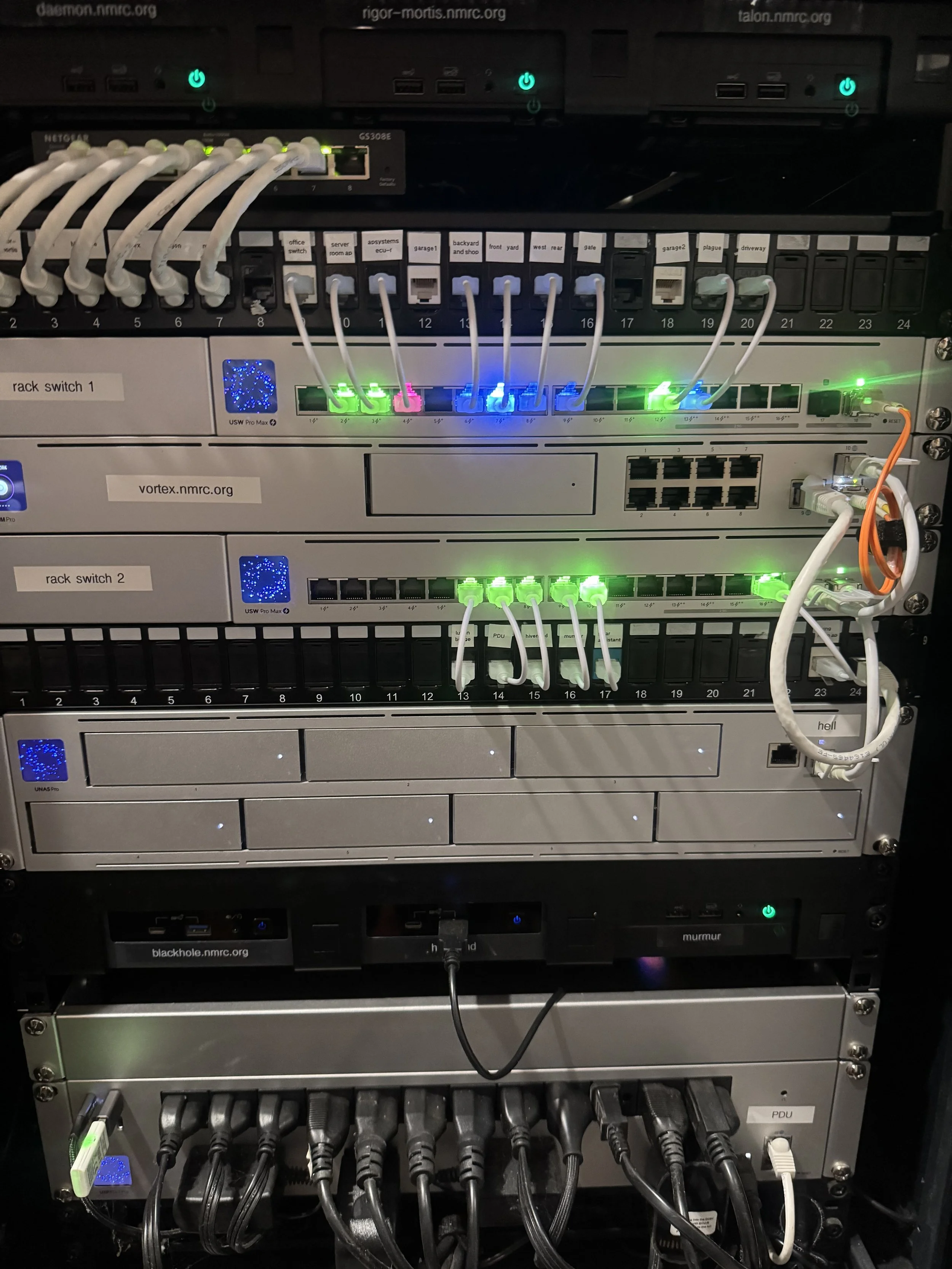
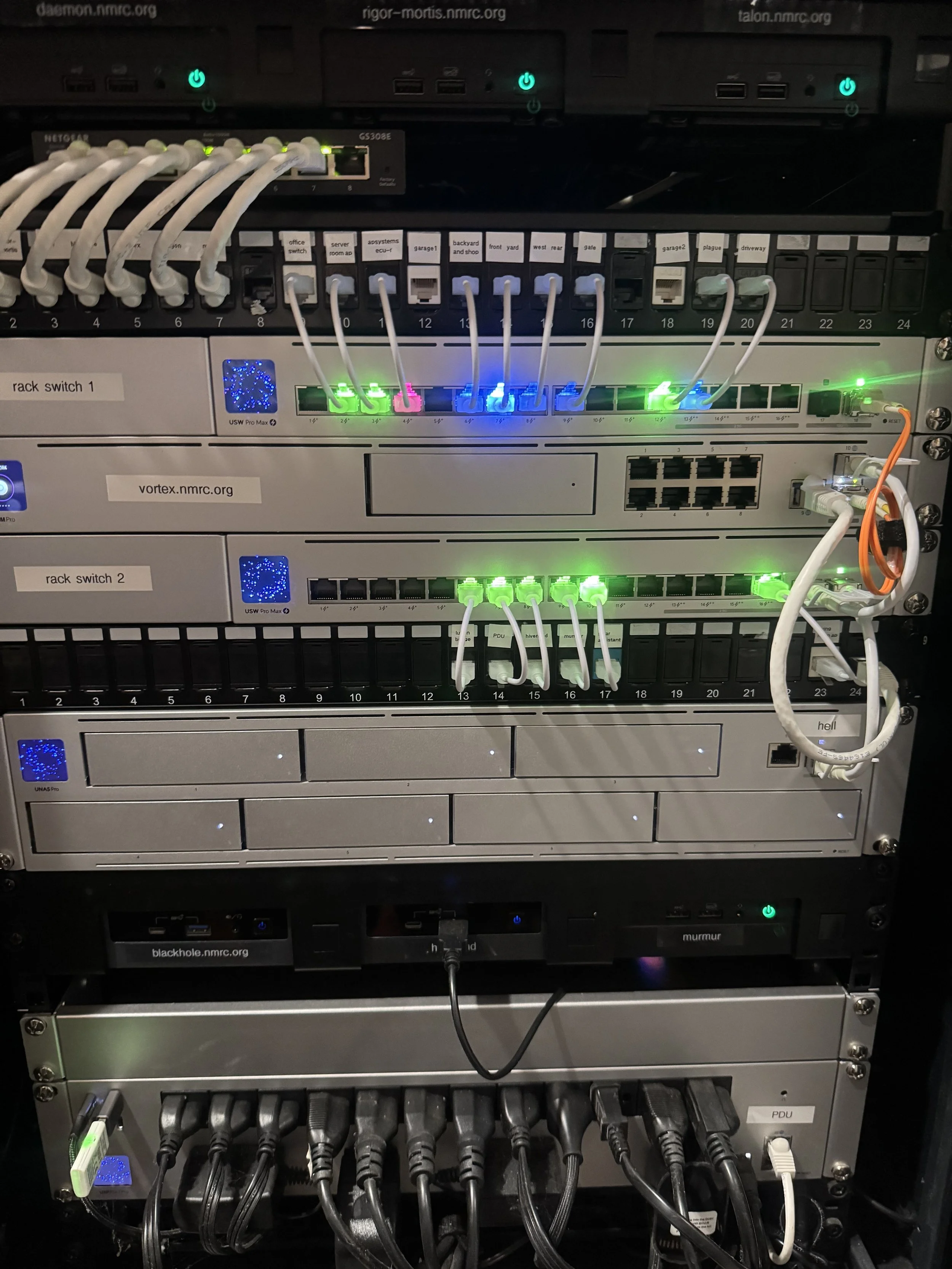
The absolute last of the changes to the rack are done. For now…
As one might imagine, the changing world of technology and its influence on all kinds of products including IoT devices, home tech, and so on means that demands on a home network gradually increase. Couple that with me having a tech-related career and a fascination with all things nerdy, this means that I fairly frequently make changes to my network. This blog post is a summation of the major changes since the last update.
Documentation
Let’s start with the most boring of updates ever - documentation. Am I talking about labeling things like the items in my rack, or labeling cable runs, or documenting what is plugged into each port of every network device? Am I talking about the inventory of installed software on multiple servers? Am I talking about the inventory of every bit of my “smart” devices that I am currently monitoring and/or capable of monitoring? The answer is yes to all of them. However this blog post is more about the hardware and mainly the server rack. Maybe I’ll talk about server inventory and smart device mapping in a future posting.
As a security person, I often am solving security-related problems and sometimes have to set up test environments or lab-like monitoring sections within my network to try to learn more about something that is going on in the security world - be it to test out some new theory or tech, or to try and duplicate some weird environment during some portion of trouble-shooting. So I prefer to be able to set things up quickly and efficiently, and wondering what cable goes where or which VLAN is allowed or not allowed to talk to some other VLAN or a particular device can slow me down. Couple that with updates and changes to all kinds of tech including smart device firmware updates as well as software monitoring features that change or are added as new versions coming out, well, I’d prefer not to spend extra minutes or hours tracking down details.
Additionally, a log of what changes occurred when is also handy. More than once I’ve had to replicate a special “network scenario” to retest something for work, and it is hard to remember details from a month ago if you’ve already changed things over for something else. At this point you’re either anxious for me to tell you what I’ve done, or simply move on because you’re getting bored, so let me end the suspense.
I did the following steps to resolve this:
Every cable in the main server rack is now labeled, with every keystone jack sporting a label as to what it attached to the back of it.
All of the ports in the new switches (more on those in a minute) are color-coded with UniFi’s “EtherLighting” which indicates which VLAN they are on. If they are plugged into something without color-coded lighting, they have specific colored cables.
Everything piece of gear, from networking devices to rack-mount servers is labeled.
All of this information is written down in markdown files with full details.
All of the markdown files are in a git repository which is stored locally in a GitLab instance.
Was this a lot of work? Oh my god yes it was a lot of work! I had planned to do it but kept putting it off, but it reached a point where I simply had to do it. A single event became the straw that broke the camel’s back, and it led to some networking hardware upgrades. That led to the documentation part - really needed to ease the upgrades.
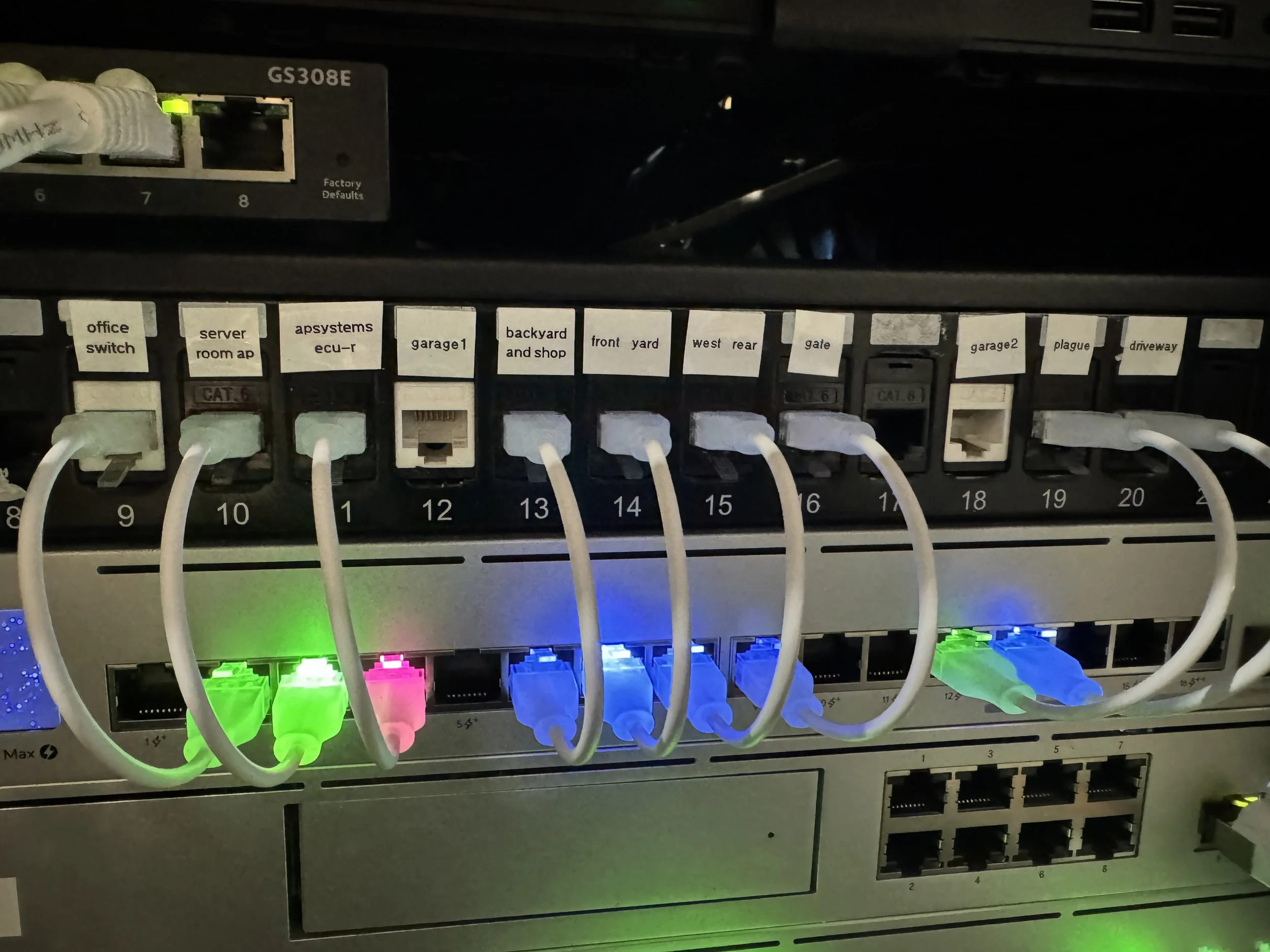
A part of Keystone 1 and the new Rack Server 1, both located above the UDM Pro. Blue lighting for camera VLAN, green for the main VLAN, and pink for the solar-related VLAN.
New Hardware
It started with some seemingly unrelated firmware and software upgrades. I use UniFi gear heavily, and either an AP upgrade or an upgrade to the console (or both) brought forth a misconfiguration on my part that I guess was accidentally not causing an error but post-upgrade it was. Yet another upgrade to a switch fixed an undetected error that caught yet another configuration mistake I had made ages ago. But let’s talk about WiFi first with AP upgrade.
I was having problems with connectivity with my phone and the home network. It was suffering from various timeouts - especially after an iOS upgrade. Looking at the AP in question, it seemed the 2.4Ghz connections were fine and stable, but the 5Ghz connections were not. Plus, the phone was capable of speaking WiFi 7 and I wanted to take advantage of that, so I ordered a U7 Pro XGS to replace what I thought was a failing AP. The other thing was while it was PoE powered, that Ethernet cable could support higher speeds and the U7 could support up to 10G. So I bought it. Imagine my thrill when I got it and it said it needed PoE++, and I did not have a switch that supported PoE++.
Another future project was ensuring WiFi connectivity with my workshop in the backyard. Reception there was poor, and after some experimentation I decided to install an outdoor AP - a U7 Pro Outdoor. Since this would require an attic cable run and a roof installation, I had decided it would be an autumn-weather installation instead of a Texas summer one. But it was a PoE+ install so I simply ran its future cable through the kitchen into the living room and adopted it into the environment there, and it seemed to resolve the WiFi problem!
I knew in the future I would want to upgrade the network for higher speeds anyway as I was currently using 1G throughout, so the idea of new switches appealed to me. So the rack got two new switches - both of them are the Pro Max 16 PoE. The would give me the PoE++ I needed, it had “EtherLighting” which for some reason I really like, and these switches were replacing two underutilized Standard 24 PoE switches already in the rack. Now one of my keystones was getting close to being filled and everything on those 24 port switches was on the right side, so getting the smaller 16 port new switches (with the extension for the power brick) simply had the switches somewhat close to where the keystones were anyway. I knew I would have to move a few keystone-connected ports around to make it all work, but I would still have plenty of space for expansion. So I had two new switches, a replacement AP as well as the addition of a new AP, and it was time to implement them. But the rack was such a mess I needed to have everything documented before I started swapping hardware and rewiring things.
Problem Resolving
Remember I said I had two problems? One with WiFi and the other with switches? I had noticed that a complete restart of the UDM Pro would seem to resolve everything for a short time, maybe a couple of days. But after I did the temp hookup of the U7 Pro Outdoor, the next reboot simply moved the WiFi problem from the Living Room AP to the Office AP. I dug into the UniFi logs and really began examining things, and finally discovered that two of the APs were both set as the Mesh Parent. Now this didn’t seem to cause a problem until an equipment firmware upgrade for the APs, but that was when the problem started. Changing one of the systems to be Mesh Connect instead of Mesh Parent fixed the problem.
The second problem that was with the switches involved RSTP, and how I had the switches set up. I haven’t even mentioned the office switch (a UniFi US 8 PoE 150W), also in absolute dire need of an upgrade from its current overworked 8-port little mess with multiple 5 and 6 port switches being swapped out during various testing experiments. Regardless, after a switch firmware upgrade it seems the RSTP stuff started failing, and I was getting weird network loops where to get around it I’d have devices routing over WiFi instead of the Ethernet run to the Office switch. Correcting RSTP settings and simply turning off WiFi mesh (for now) fixed that problem.
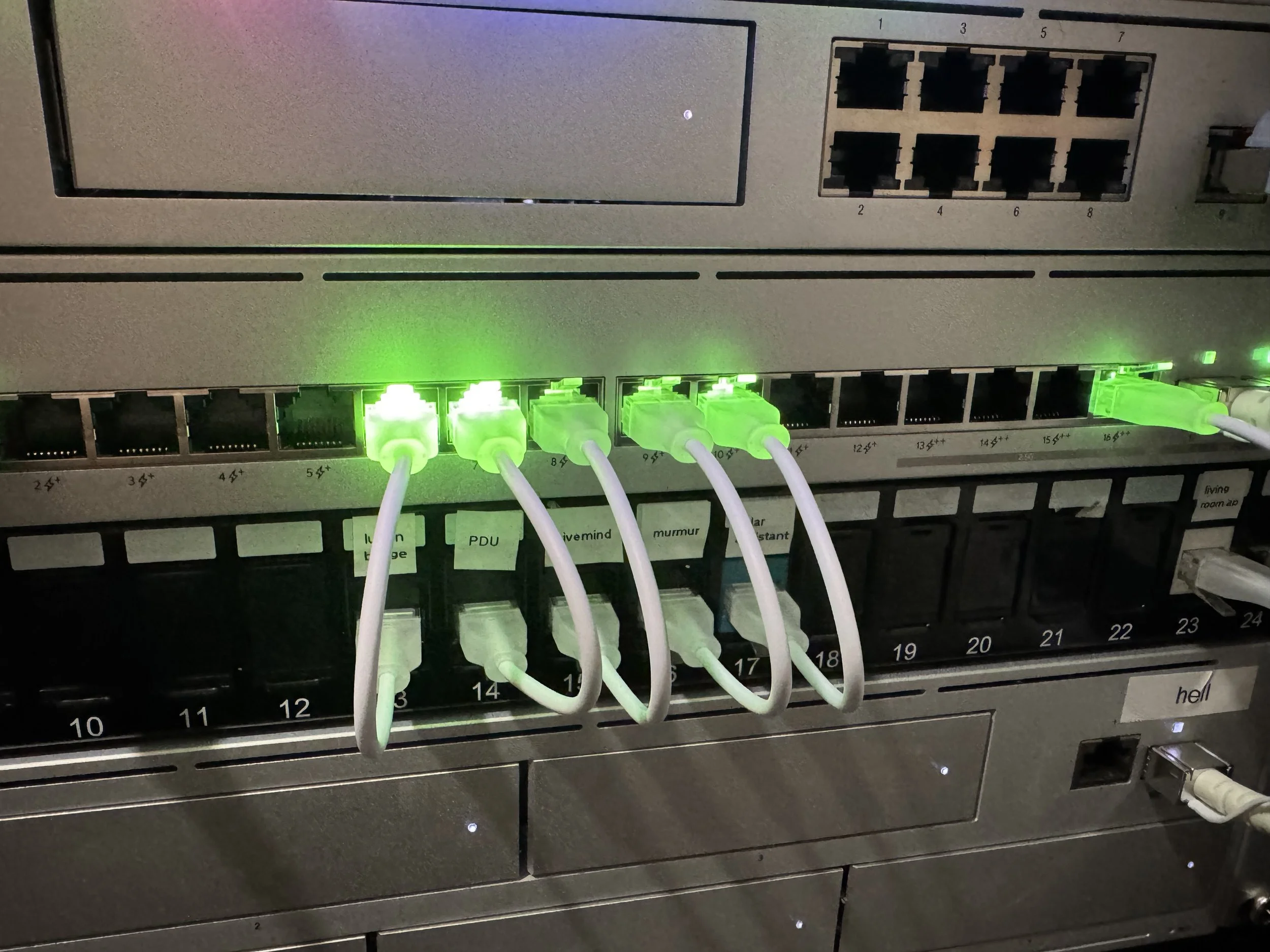
Just below the UDM Pro is Keystone 2 and the new Rack Switch 2. Plenty of room for (future planned) expansion.
Where Things Are Now
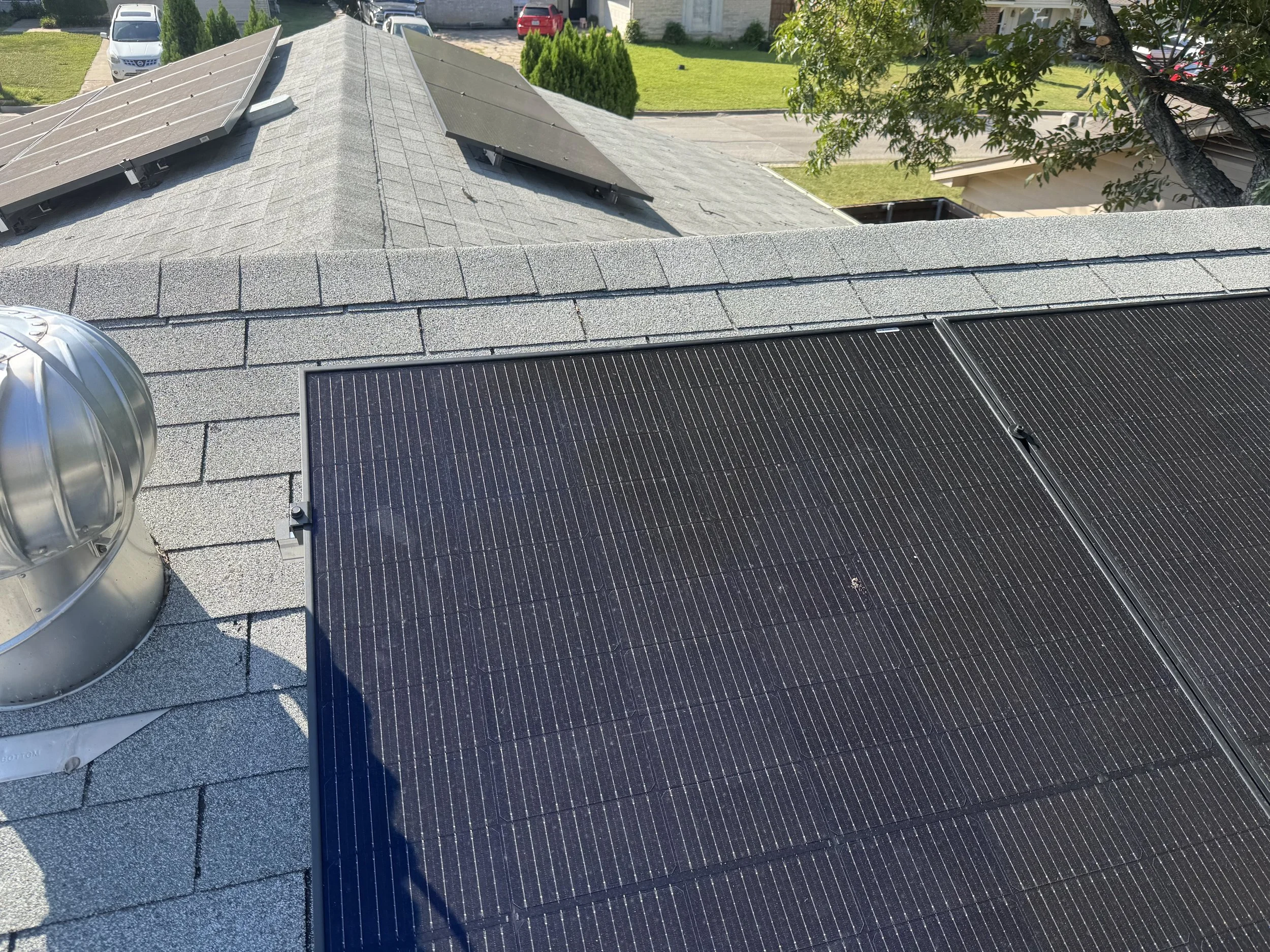
Everything is currently documented, the rack has its new hardware, and the attic run will happen soon. Mounting an AP on the roof will be quite interested. I’ve already decided there will be a PoE outdoor switch mounted up there as well so I can install a camera where I can watch the storms that roll in from the southwest during storm season (yes, I am also a former storm chaser and weather nerd). The planned overall office upgrade with free up a few connections in the rack as some non-critical gear can be moved in there along with a lot of things like my electronics station. I’ll likely put in another UniFi Pro Max 16 PoE, and at the whole experiments desk I will have those two recently-decommissioned UniFi Standard 24 PoE switches. This will free up more room in the server room, which solved some of my longer-term storage issues as well.
When completed I will be extending the 10Gb fiber connectivity backplane into the office, all of the internal network speeds will be capable of 2.5Gb speeds (assuming the hardware supports it), and I’ll have 48 ports of experimental ports to play with in a dedicated experiment network. Of course this is mainly just hardware upgrades, I will still have the usual and constant software upgrades as well, but wow this nerd is happy and having so much fun.